By Ethan Cole • Published November 19, 2025 • Updated April 18, 2026 • Fact-checked content
Note: This content is provided for informational purposes only. Always verify details from official or specialized sources when necessary.
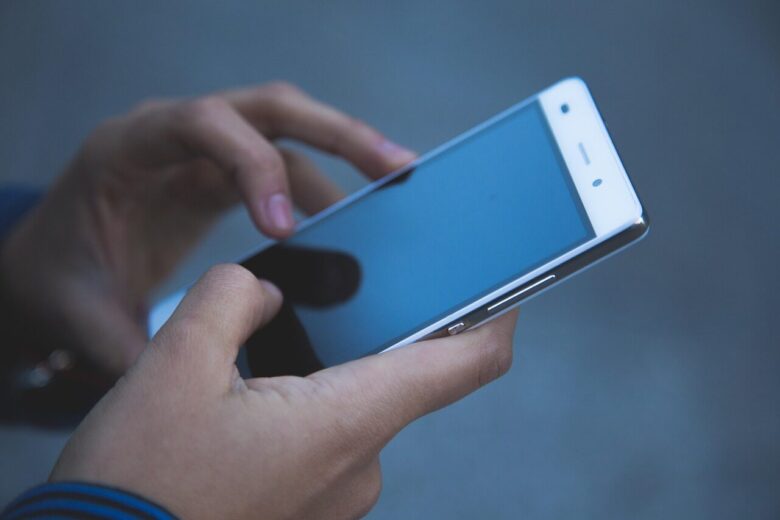
Your phone screen is smaller than your laptop, but it may be causing more eye strain than you realize.
Phones are held closer to the face, used in varying light conditions, and often stared at for hours without breaks. Tiny text, high brightness, and constant scrolling create a perfect storm for digital eye strain that many people overlook because they assume phones are “easier” on the eyes than computers.
This guide explains why phone screens cause unique strain, how to adjust your device for comfort, and what habits can protect your eyes during long mobile sessions.
Why Phones Cause Different Eye Strain Than Computers
Three factors make phone use particularly hard on the eyes: viewing distance, text size, and usage patterns.
Closer viewing distance: Most people hold phones eight to twelve inches from their face, compared to twenty to twenty-six inches for a monitor. This closer distance forces the eye’s focusing muscles to work harder, especially during prolonged reading or scrolling.
Tiny text and interface elements: Phone screens pack a lot of information into a small space. Reading small text requires more concentration, reduces blink rate, and often leads to squinting. Over time, this causes focusing fatigue and headaches.
Intermittent and mobile use: Unlike a desktop setup where you control lighting and posture, phones are used everywhere: in bed, on buses, outdoors, and in dark rooms. This constant shift in lighting conditions forces your eyes to adapt repeatedly, increasing fatigue.
- Closer distance: increases focusing effort and accelerates eye muscle fatigue.
- Small text: reduces blink rate and causes squinting during long reading sessions.
- Varying light: rapid adaptation between bright outdoor and dark indoor use strains the visual system.
- One-handed scrolling: often leads to awkward head angles and neck strain that compounds eye discomfort.
Phone Settings That Reduce Eye Strain
Modern smartphones include several built-in features designed to reduce visual discomfort. Most are underutilized because users do not know they exist or assume default settings are optimal.
1. Increase Text Size and Display Zoom
On iPhone, go to Settings, Display and Brightness, then Text Size. Use the slider to increase text. For even larger text, go to Accessibility, Display and Text Size, and enable Larger Accessibility Sizes. On Android, go to Settings, Display, and adjust Font Size and Display Size independently.
Display Zoom, available on most modern phones, scales the entire interface larger, not just text. This reduces how much you need to focus on tiny buttons and menu items. The change feels odd for about ten minutes, then becomes natural.
2. Enable Auto-Brightness and Night Mode
Auto-brightness uses the phone’s ambient light sensor to match screen brightness to your surroundings. This prevents the common mistake of staring at a blinding screen in a dark room or squinting at a dim screen in sunlight. Keep it enabled rather than manually adjusting throughout the day.
Night mode or blue light filter, available on both iOS and Android, shifts colors warmer in the evening. Schedule it to activate automatically from sunset to sunrise. This does not prevent all eye strain, but it reduces the harshness of bright screens before bed and may help with sleep quality.
3. Reduce White Point and Increase Contrast
In iPhone Accessibility settings, Reduce White Point lowers the intensity of bright colors without dimming the overall screen. At 50 to 70 percent reduction, the screen feels noticeably softer during long reading sessions. On Android, look for Extra Dim in Accessibility settings for a similar effect.
Increase Contrast, also in Accessibility, makes text edges sharper against backgrounds. This helps if you find yourself squinting to distinguish text from background colors in apps or websites.
4. Use Dark Mode Strategically
Dark mode inverts the typical white background to black with light text. It reduces overall screen brightness and can feel more comfortable in dim environments. However, it is not universally better. Some people find light text on dark backgrounds harder to read for long articles, especially if the font is thin or the contrast is too high.
Test dark mode for a full day of typical use. If your eyes feel less tired by evening, keep it. If you find yourself straining to read long paragraphs, switch back to light mode and rely on other adjustments instead.
Habits That Protect Your Eyes During Phone Use
Settings help, but behavior matters more. These habits cost nothing and often make a bigger difference than any software feature.
- Follow the 20-20-20 rule: Every twenty minutes, look at something twenty feet away for twenty seconds. Set a timer if you tend to lose track during scrolling sessions.
- Hold the phone farther away: Aim for fourteen to sixteen inches instead of eight to ten. This small increase significantly reduces focusing effort.
- Blink deliberately: Phone use drops blink rate by up to half. Make a conscious effort to blink fully and regularly, especially during reading.
- Avoid phone use in bed: Lying down with a phone above your face creates awkward angles and often leads to prolonged sessions past bedtime. Use a bedside lamp and sit upright if you must read before sleep.
- Take breaks from scrolling: Set app time limits or use built-in screen time reports to become aware of how many hours you actually spend on your phone. Awareness is the first step toward reduction.
When Phone Eye Strain Signals a Deeper Problem
Occasional tiredness after long phone use is normal. However, certain symptoms suggest you need professional evaluation rather than just settings adjustments.
See an optometrist if you experience persistent blurred vision, double vision, headaches that start after phone use, one eye becoming blurrier than the other, or increasing difficulty reading even with text size maximized. These can indicate prescription changes, astigmatism, dry eye disease, or binocular vision problems that no phone setting can fix.
Related: Regular eye exams are the best way to catch vision changes before they become serious problems, especially if you use screens daily. Read our guide on How Often Should You Get an Eye Exam? Complete Vision Care Guide to understand exam schedules by age, what tests to expect, and how to prepare for your visit.

Ethan Cole is a digital wellness writer and long-time screen user who spent years struggling with eye strain before rebuilding his daily habits around research-backed eye comfort practices. After consulting with multiple optometrists and testing dozens of ergonomic setups, he founded BugEyes Vision to share practical, affordable strategies that actually help heavy screen users feel better. Every article is reviewed against current eye health guidelines and written with the goal of saving readers time, money, and unnecessary discomfort.