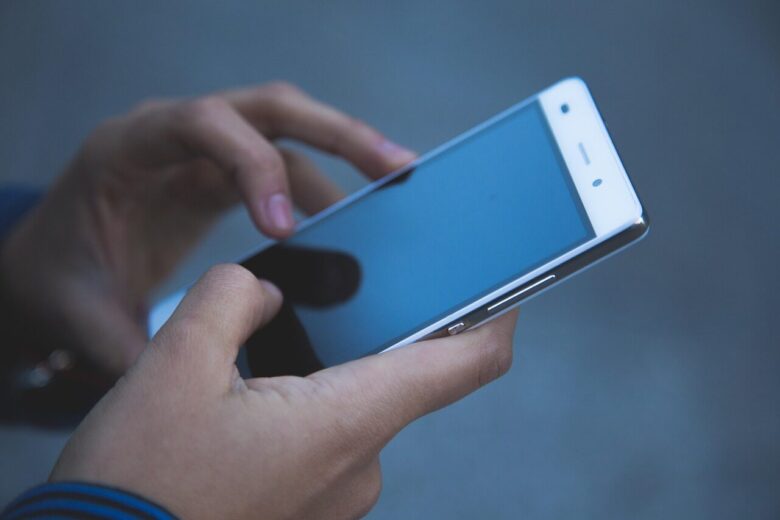
What if your phone isn’t “hurting your eyes”-but the way you use it is?
Dryness, blurry vision, headaches, and that heavy-eyed feeling often come from small screen habits repeated for hours: brightness too high, text too tiny, glare, poor distance, and endless scrolling without breaks.
The good news: you don’t need to quit your phone or buy special gadgets. A few simple settings and behavior changes can make your screen noticeably easier to look at.
This guide shows practical ways to reduce phone eye strain, improve comfort, and make everyday screen time gentler on your eyes.
Why Phone Screens Cause Eye Strain: Brightness, Glare, Focus, and Blue Light Explained
Phone eye strain usually comes from a mix of screen brightness, glare, close-up focusing, and long viewing time. If your display is much brighter or darker than the room around you, your eyes keep adjusting, which can lead to tiredness, dryness, and headaches.
Glare is another common problem, especially when using your phone near a window, under office lighting, or outdoors. A glossy screen reflects light back into your eyes, so even a premium smartphone display can feel uncomfortable without an anti-glare screen protector or better screen positioning.
- Brightness mismatch: A bright screen in a dark bedroom forces your eyes to work harder.
- Close viewing distance: Holding your phone too near keeps the focusing muscles under constant tension.
- Blue light exposure: It may affect comfort and sleep timing, especially during night scrolling.
A real-world example: reading emails on Gmail in bed with full brightness feels convenient, but it often causes squinting and watery eyes within minutes. Lowering brightness, turning on Night Shift or Eye Comfort Shield, and increasing text size can make the same task much easier.
Blue light glasses, screen filters, and vision care apps can help, but they are not a complete fix if your habits stay the same. The biggest benefits usually come from adjusting display settings, reducing glare, using proper lighting, and taking regular screen breaks.
How to Make Your Phone Easier on Your Eyes: Display Settings, Text Size, and Break Habits
Start with the settings that reduce visual effort, not just brightness. On iPhone, use Night Shift, True Tone, and Display Zoom; on Android, look for Eye Comfort Shield, Night Light, or Reading Mode. These blue light filter and screen comfort tools are useful at night, but they work best when paired with lower brightness and warmer color temperature.
Text size matters more than most people think. If you constantly pinch to zoom emails, banking apps, or health insurance portals, increase system font size and enable bold text. A larger font can reduce squinting, especially when reading small labels in finance apps, medication reminders, or work tools like Microsoft Outlook.
- Match screen brightness to the room; avoid a bright phone in a dark bedroom.
- Use dark mode in low light, but switch to light mode outdoors for better contrast.
- Consider an anti-glare screen protector if you use your phone near windows or under office lighting.
Break habits are just as important as display settings. A practical rule I’ve seen work well is to look across the room whenever an app is loading, a video ad plays, or you finish replying to a message. It turns small pauses into eye relief without needing a timer.
If your eyes still burn or your vision blurs after short phone use, it may be time for an eye exam, especially if you wear prescription glasses or contacts. Digital eye strain can overlap with dry eye, outdated prescriptions, or poor screen ergonomics, and professional eye care is often cheaper than guessing through random accessories.
Common Phone Eye Strain Mistakes to Avoid When Using Dark Mode, Night Shift, and Screen Protectors
Dark mode can help in low-light settings, but using it all day is not always the best choice. In bright sunlight or a well-lit office, dark mode may force your pupils to work harder and make text look less sharp, especially on glossy screens.
One common mistake is turning on Night Shift or blue light filter settings and assuming the problem is solved. Tools like Apple Night Shift and Android’s Eye Comfort Shield can make evening scrolling feel softer, but they do not fix glare, poor posture, tiny text, or nonstop screen time.
- Using maximum brightness at night: Lower brightness and match it to the room instead of relying only on warm color tones.
- Buying the cheapest screen protector: Low-quality protectors can add haze, reflections, or rainbow effects that make reading harder.
- Ignoring text size: Increasing font size often helps more than changing color temperature.
A real-world example: if you read emails on your phone during a train commute, a matte anti-glare screen protector may reduce reflections better than dark mode alone. For people who use mobile banking apps, trading apps, or work dashboards, clearer contrast and reduced glare can also lower visual fatigue during detailed tasks.
Be careful with “blue light blocking” accessories that make big claims without clear product details. Look for reputable screen protectors, adjustable display settings, and regular eye exams if discomfort continues, because persistent phone eye strain can sometimes point to dry eyes, outdated glasses, or uncorrected vision issues.
The Bottom Line on Phone Eye Strain: Simple Ways to Make Your Screen Easier to Use
Phone eye strain is usually a signal that your screen habits need small adjustments, not a complete lifestyle overhaul. The best approach is to change the settings and behaviors you can maintain every day: softer brightness, comfortable text size, regular breaks, and less late-night scrolling.
If symptoms fade, your routine is likely working. If headaches, dryness, blurred vision, or eye discomfort continue, treat that as a reason to review your screen use and consider an eye exam. Your phone should feel easy to read-not like something your eyes have to fight.